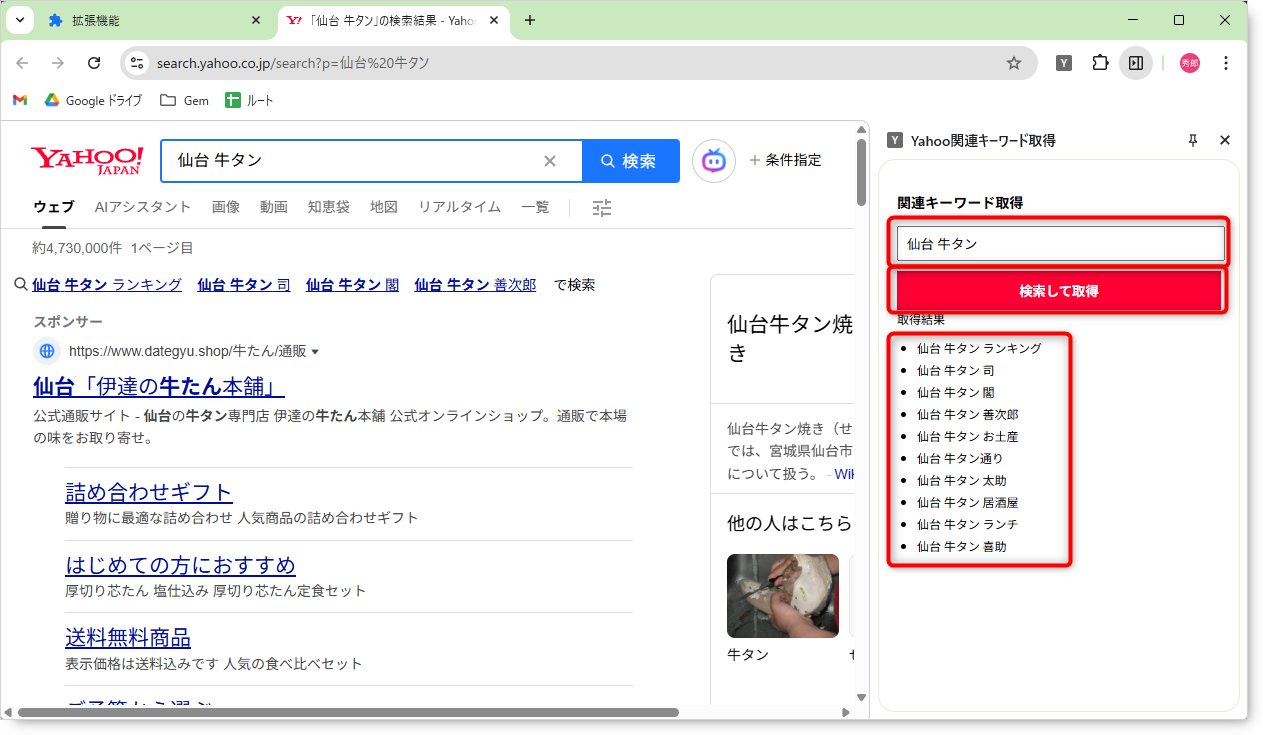
今回は、検索エンジンのSEO対策に役立つ「関連キーワード(サジェスト)」を取得するツール**を作成します。
Yahoo!で検索した際、ページの下の方に表示される「虫眼鏡アイコンの付いたキーワード一覧」を、プログラムを使って自動で抜き出し、サイドパネルにリストアップする拡張機能です。
フォルダ名は yahoo-keyword-getter 等にして、以下の4つのファイルを作成してください。
manifest.json (設定ファイル)
{
  "manifest_version": 3,
  "name": "Yahoo関連キーワード取得",
  "version": "1.0",
  "permissions": [
    "sidePanel",
    "scripting",
    "tabs"
  ],
  "host_permissions": [
    "https://search.yahoo.co.jp/*"
  ],
  "action": {
    "default_title": "キーワード取得"
  },
  "background": {
    "service_worker": "background.js"
  },
  "side_panel": {
    "default_path": "sidepanel.html"
  }
}
1. permissions: [“scripting”]
今回は、開いたWebページの中身を解析(スクレイピング)するため、新たに scripting という権限を追加しています。
2. host_permissions
Yahoo!の検索ページに対してプログラムを実行するため、https://search.yahoo.co.jp/* へのアクセス許可を明記しています。
background.js (サービスワーカー)
chrome.runtime.onInstalled.addListener(() => {
  chrome.sidePanel.setPanelBehavior({ openPanelOnActionClick: true });
});
アイコンクリックでサイドパネルを開く設定です。
sidepanel.html (表示画面)
<!DOCTYPE html>
<html lang="ja">
<head>
<meta charset="utf-8">
<title>Keyword Getter</title>
<style>
body { padding: 10px; font-family: sans-serif; }
input { width: 95%; padding: 8px; margin-bottom: 10px; }
button { width: 100%; padding: 10px; cursor: pointer; background-color: #ff0033; color: white; font-weight: bold; border: none; }
h4 { margin: 15px 0 5px; border-bottom: 1px solid #ccc; }
ul { padding-left: 20px; }
li { margin-bottom: 5px; }
</style>
</head>
<body>
<h3>関連キーワード取得</h3>
<input type="text" id="keyword-input" placeholder="キーワードを入力...">
<button id="search-btn">検索して取得</button>
取得結果
<ul id="result-list"></ul>
<script src="sidepanel.js"></script>
</body>
</html>
1.<ul id=”result-list”></ul>
取得したキーワードを表示するためのリストです。最初は空っぽにしておき、JavaScriptで中身を追加していきます。
sidepanel.js (ロジック)
document.getElementById("search-btn").addEventListener("click", function() {

  const keyword = document.getElementById("keyword-input").value;
  if (!keyword) return;

  const listElement = document.getElementById("result-list");
  listElement.innerHTML = "<li>取得中...</li>";

  const searchUrl = `https://search.yahoo.co.jp/search?p=${encodeURIComponent(keyword)}`;

  chrome.tabs.create({ url: searchUrl, active: true }, (tab) => {

    chrome.tabs.onUpdated.addListener(function listener(tabId, changeInfo) {

        if (tabId === tab.id && changeInfo.status === 'complete') {

            chrome.tabs.onUpdated.removeListener(listener);

            chrome.scripting.executeScript({
                target: { tabId: tabId },
                func: getRelatedKeywords
            }, (results) => {

                listElement.innerHTML = ""; // "取得中..."を消す

                const keywords = results[0].result;

                if (keywords && keywords.length > 0) {
                    keywords.forEach(text => {
                        const li = document.createElement("li");
                        li.textContent = text;
                        listElement.appendChild(li);
                    });
                } else {
                    listElement.innerHTML = "<li>関連キーワードが見つかりませんでした</li>";
                }
            });
        }
    });
});
});

function getRelatedKeywords() {
  const elements = document.querySelectorAll(".SouthUnitItem .SouthUnitItem__text");
  const texts = [];
  elements.forEach(el => {
    texts.push(el.innerText);
  });

  return texts;
}
1. document.getElementById(“search-btn”).addEventListener
「検索して取得」ボタンがクリックされた時の動作を開始します。
2. const keyword = document.getElementById(“keyword-input”).value
IDが「keyword-input」の要素(テキストボックス)に入力された文字を取得します。もし空欄の場合は処理を中断します。
3. listElement.innerHTML = “
処理が始まったことをユーザーに伝えるため、リストの中にメッセージを表示します。
4. chrome.tabs.create({ url: searchUrl, active: true }…
作成したYahoo!検索のURLを、新しいタブで開きます。active: true にしているので、開いた瞬間にそのタブに移動します。
5. chrome.tabs.onUpdated.addListener
新しく開いたタブの状態を監視し始めます。「読み込み中」なのか「読み込み完了」なのかをチェックするためです。
6. if (tabId === tab.id && changeInfo.status === ‘complete’)
「監視しているタブID」と「開いたタブID」が一致し、かつ「読み込み状況(status)」が完了(complete)になった瞬間を検知します。
7. setTimeout(() => { … }, 1000)
ページ読み込み完了の合図が出ても、画面上のパーツが表示されるまでに少し時間がかかることがあります。そのため、念の為1秒(1000ミリ秒)待ってから処理を実行するようにしています。これにより取得の失敗を防ぎます。
8. chrome.scripting.executeScript
開いたYahoo!のページの中に、プログラム(getRelatedKeywords 関数)を送り込んで実行させます。
9. function getRelatedKeywords()
ここから下は、拡張機能の画面ではなく「Yahoo!のページ内」で実行される処理です。
10. document.querySelectorAll(“.SouthUnitItem .SouthUnitItem__text”)
ページ内から、関連キーワードが含まれている場所(クラス名)を探し出します。Yahoo!のデザイン変更に対応できるよう、下部(SouthUnit)や上部(HelperUnit)など、複数のパターンを探すように書かれています。
11. […new Set(texts)]
取得したキーワードリストの中に、もし同じ言葉が重複していた場合、それを削除して一つにまとめる処理です。
実行
1. 拡張機能をインストールし、サイドパネルを開きます。
2. キーワード(仙台 牛タン等)を入力して「検索して取得」ボタンを押します。
3. 新しいタブでYahoo検索が開き、サイドパネルに関連キーワードが表示されれば成功です!